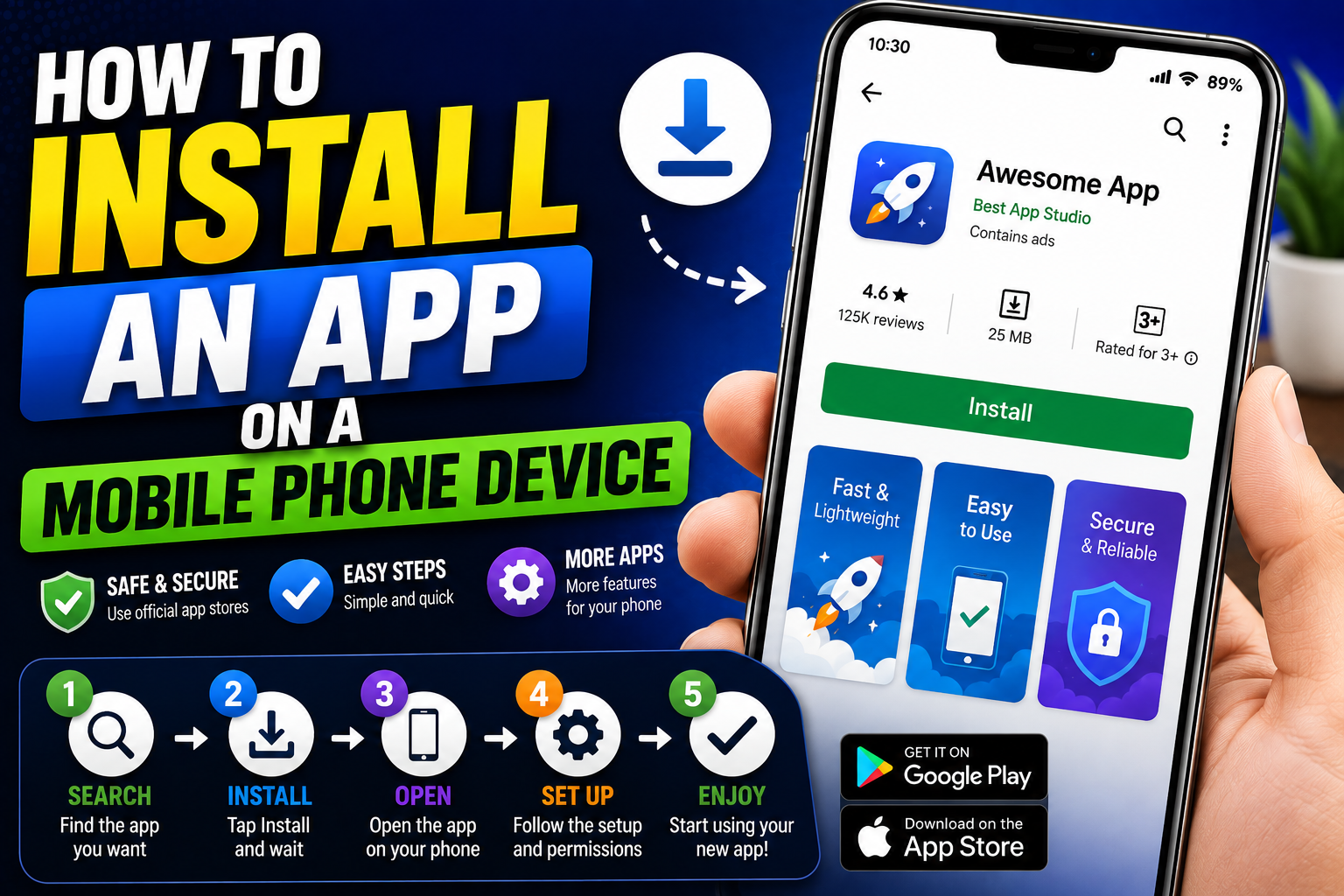
Mobile phones have become an essential part of everyday life. From communication and entertainment to education, banking, shopping, navigation, and productivity, applications make smartphones more useful and versatile. However, people who are new to smartphones may still wonder how to download and install an app correctly.
Learning how to install an app on a mobile phone device is generally simple. Most modern phones provide an official application store that allows users to search for, download, and install software within a few steps. Whether you use an Android phone or an iPhone, understanding the installation process can help you use your device more effectively.
This guide explains how to install an app on a mobile phone device, how to check compatibility, how to manage permissions, and what to do if an application cannot be installed.
What Is a Mobile Phone Application?
A mobile phone application, often called a mobile app, is software designed to run on a smartphone or mobile device. Applications can provide specific functions or services that are not included in the phone’s default software.
There are many types of mobile applications, including:
- Messaging applications
- Social media apps
- Online shopping apps
- Banking applications
- Navigation tools
- Educational apps
- Productivity software
- Streaming services
- Mobile games
- Photography and video apps
- Health and fitness applications
The type of application you can install depends on your phone’s operating system, hardware, storage capacity, and regional availability.
Step 1: Check Your Mobile Phone
Before installing an application, check your mobile phone’s basic information.
Open the Settings menu and look for information about the device model, operating system, and software version. Android phones and iPhones have different installation systems, so knowing which platform you are using is important.
You should also check the amount of available storage. An application cannot be installed if your phone does not have enough free space.
Important information to check includes:
- Phone model
- Operating system
- Software version
- Available storage
- Internet connection
- Battery level
If your phone uses an older operating system, some newer applications may not be compatible with it.
Step 2: Make Sure You Have an Internet Connection
Most applications need to be downloaded from the Internet before they can be installed.
You can generally use Wi-Fi or mobile data. Wi-Fi is often recommended for large applications because downloading them through mobile data may use a significant amount of your data allowance.
Before starting the download, make sure your Internet connection is stable. A weak connection can cause the download to stop or fail.
You should also make sure your phone has enough battery power. For larger applications, keeping the phone connected to a charger can be helpful.
Step 3: Open the Official App Store
The easiest and safest way to install an app is through your phone’s official application store.
Android phones generally use the Google Play Store, while iPhones use the App Store.
Open the appropriate app store from your phone’s home screen or application menu.
You may need to sign in with a Google Account or Apple Account before downloading an application.
Using an official app store is recommended because it provides application information, developer details, reviews, updates, and compatibility information in one place.
Step 4: Search for the App
Use the search bar in the application store to find the software you want.
Enter the app’s name carefully. Some applications have similar names, so it is important to select the correct one.
Before installing an application, review its information page.
Pay attention to:
- App name
- Developer name
- Ratings
- User reviews
- Number of downloads
- Description
- Required permissions
- Compatibility information
- Storage requirements
Checking the developer is particularly important when downloading popular applications. Unofficial apps may have similar names or icons and could potentially create security risks.
Step 5: Check App Compatibility
After finding the application, check whether it is compatible with your mobile phone.
Most official app stores automatically determine whether an application can run on your device. If the application requires a newer operating system version, the store may prevent you from installing it.
Some apps may also require specific hardware features such as GPS, a camera, Bluetooth, a microphone, or a particular processor.
If an application is not compatible with your phone, avoid attempting to force the installation unless you understand the potential risks.
Step 6: Start the Installation
Once you have confirmed that the application is compatible, select the installation button.
On Android devices, this is usually labeled Install. On an iPhone, the button is generally labeled Get.
Your phone may ask you to confirm the installation using a password, fingerprint, Face ID, Touch ID, or another security method.
After confirmation, the application will begin downloading.
A progress indicator will usually appear while the app is being downloaded and installed. The installation time depends on the size of the application and your Internet connection speed.
Wait until the process has completely finished.
Step 7: Open the New Application
After the installation is complete, you can usually select Open directly from the app store.
Alternatively, locate the application’s icon on your phone’s home screen or application menu.
When you open the app for the first time, it may ask you to complete an initial setup process.
Depending on the application, you may need to:
- Create an account.
- Sign in to an existing account.
- Accept terms and conditions.
- Select language preferences.
- Configure notifications.
- Set personal preferences.
- Grant required permissions.
Follow the instructions provided by the application.
Step 8: Review App Permissions
Application permissions are an important part of mobile security.
An application may request access to different features of your phone, such as:
- Camera
- Microphone
- Location
- Contacts
- Photos
- Files
- Notifications
- Bluetooth
Think carefully before granting permissions.
For example, a navigation application may need location access to provide directions. A camera application may reasonably require access to the camera and photos.
However, a simple calculator generally does not need access to your contacts or microphone.
You can usually manage application permissions later through your phone’s settings.
How to Install an App Using Mobile Data
You do not always need Wi-Fi to install an application. Most mobile phones can download apps using cellular data.
However, large applications can consume a significant amount of mobile data. If your data plan has a limited allowance, check the application’s size before downloading it.
For large games, video applications, or productivity tools, using a reliable Wi-Fi connection is often a better choice.
How to Install an App Manually
Some Android phones allow users to install applications manually using APK files. This method is sometimes useful when an application is unavailable through the official store.
However, manual installation can introduce additional security risks.
Applications downloaded from unknown websites may contain malware, spyware, or unwanted software. For this reason, most users should prefer official app stores.
If manual installation is necessary, verify the source carefully and make sure the application is specifically designed for your phone.
What to Do If an App Will Not Install
Sometimes an application may fail to download or install.
The first thing to check is available storage. Delete unnecessary files or applications if your phone is nearly full.
Next, check your Internet connection. Try reconnecting to Wi-Fi or switching to another reliable network.
Restarting your phone can also resolve temporary software problems.
You should also check whether your phone’s operating system needs an update. An outdated system may not support the latest version of an application.
Finally, check the application’s compatibility requirements.
How to Uninstall an App
If you no longer need an application, uninstalling it can free up storage space.
On many smartphones, press and hold the application’s icon and select the uninstall or remove option. You can also manage installed applications through the phone’s settings.
Before uninstalling an app, make sure important data has been synchronized or backed up if necessary.
Removing applications you no longer use can help keep your phone organized and maintain available storage.
Tips for Safely Installing Mobile Apps
Always download applications from official app stores whenever possible.
Before installing an unfamiliar application, check its developer, reviews, description, permissions, and compatibility information.
Keep your phone’s operating system and applications updated. Updates can provide security improvements, bug fixes, and new features.
Avoid suspicious websites and links that ask you to download unknown installation files. Be especially careful with applications that promise free premium features, unauthorized content, or unrealistic rewards.
Regularly review your installed applications and remove software that you no longer use.
How do I install an app on a mobile phone device?
Open the official app store, search for the application, check its developer and compatibility, and select Install or Get. Wait for the download and installation to finish, then open the application.
Can I install an app without Wi-Fi?
Yes. Most smartphones can use mobile data to download applications. However, large apps can consume a significant amount of data.
Why can’t I install an app on my phone?
Common causes include insufficient storage, a poor Internet connection, an outdated operating system, or incompatibility between the application and your device.
Is it safe to download apps outside the official app store?
It can be riskier. Apps from unknown sources may contain malicious or unwanted software. Whenever possible, use the official application store.
Conclusion
Learning how to install an app on a mobile phone device is a straightforward process. Start by checking your phone’s operating system, available storage, Internet connection, and compatibility.
Next, open the official app store and search for the application you want. Check the developer, reviews, requirements, and permissions before selecting Install or Get.
Once the installation is complete, open the application and complete its setup process. If the app does not install, check your storage, Internet connection, operating system, and compatibility.
By using trusted application stores, reviewing permissions, and keeping your smartphone updated, you can install mobile apps safely and enjoy additional features and services on your device.
Penulis: Shofiya M.P






Post Comment