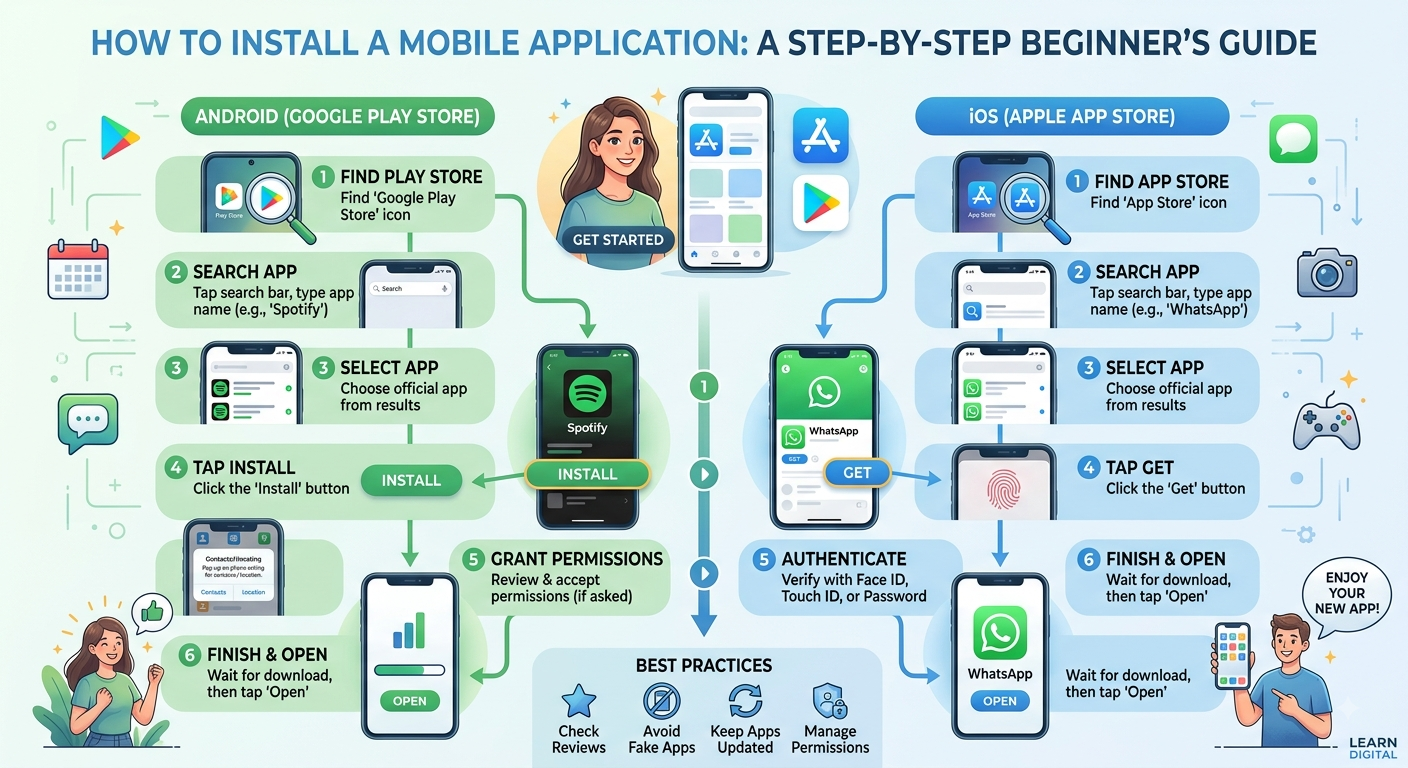
Smartphones and tablets have transformed the way we live, work, and play. Whether you want to connect with friends on social media, track your daily fitness goals, order food delivery, or play immersive mobile games, mobile applications (apps) make it all possible. If you have recently purchased a new smartphone—whether powered by Android or iOS (Apple)—learning how to safely and correctly find, download, and install mobile apps is one of the first things you should master.
While installing apps is designed to be a seamless experience, knowing how to navigate app stores, manage your storage, update software safely, and avoid malicious downloads is essential for a secure digital life. In this comprehensive guide, we will walk you through the exact steps to install mobile applications across different platforms, along with best practices to keep your device safe.
Understanding App Stores: Where Do Apps Come From?
Before you install any application, it is important to know where legitimate apps live. Official app stores are vetted marketplaces operated by the device manufacturers or operating system creators. They scan applications for malware, privacy violations, and security flaws before making them available to the public.
- Google Play Store: The official, default app marketplace for Android devices (such as Samsung, Google Pixel, Motorola, and Xiaomi).
- Apple App Store: The exclusive official marketplace for Apple iOS devices (iPhone, iPad, and iPod Touch).
Using these official sources ensures that the software you are downloading is safe, optimized for your device, and easy to keep updated.
Method 1: How to Install an App on an Android Device (Google Play Store)
Android devices use the Google Play Store for almost all application installations. Follow these step-by-step instructions to find and install any app:
Step 1: Open the Google Play Store
Unlock your Android phone or tablet, locate the Play Store icon on your home screen or app drawer (it looks like a multicolored triangle), and tap it to open the application.
Step 2: Sign In with a Google Account
If this is a brand-new device, the Play Store will prompt you to sign in using your Google (Gmail) account. Enter your email address and password. If you already use Gmail on the device, you will likely be signed in automatically.
Step 3: Search for the App
Tap the search bar at the top of the screen, which typically says “Search for apps & games”. Type the name of the application you want (e.g., WhatsApp, Instagram, or Duolingo) and press the magnifying glass search icon on your keyboard.
Step 4: Review the App Details
Tap on the correct app from the search results list to open its dedicated product page. Here, you can check:
- Ratings and Reviews: See what other users think about the app’s performance.
- Download Size: Make sure you have enough storage space on your phone.
- Developer Information: Verify that you are downloading the official version by checking the developer’s name.
Step 5: Tap “Install”
Tap the green Install button. The app will begin downloading. Depending on your internet speed (Wi-Fi or mobile data) and the size of the app, this may take anywhere from a few seconds to a few minutes.
Step 6: Open the App
Once the installation finishes, the button will change to Open. You can tap it directly to launch the application. Additionally, a shortcut icon for the new app will automatically be added to your phone’s home screen or app library.
Method 2: How to Install an App on an iPhone or iPad (Apple App Store)
Apple devices rely on the App Store to manage software. The process is very similar to Android, utilizing Apple’s secure ecosystem.
Step 1: Open the App Store
Locate the App Store icon on your iPhone or iPad home screen (a blue icon with a stylized white “A”) and tap it.
Step 2: Use the Search Tab
At the bottom right corner of the App Store screen, tap the Search icon (magnifying glass). Tap the search bar at the top, type the name of the application you are looking for, and tap Search on your keyboard.
Step 3: View the App Page
Tap on the application you want from the search results. On the product page, you can review screenshots, read user ratings, check age restrictions, and see app privacy details.
Step 4: Tap “Get”
Tap the Get button next to the app.
- Note: If you have downloaded the app previously, you might see a cloud icon with a downward arrow instead. This means you can redownload it for free.
Step 5: Authenticate the Download
Apple requires security confirmation before downloading apps. Depending on your iPhone model, you will be prompted to:
- Double-click the side button to use Face ID.
- Press the Home button to use Touch ID.
- Enter your Apple ID password.
Once authenticated, a circular progress ring will appear as the app downloads.
Step 6: Find Your App
Once downloaded, the button changes to Open. You can open it right away, or swipe to your device’s final home screen page to find the app icon inside your App Library.
Important Security and Safety Best Practices
Installing apps safely protects your personal information, financial data, and device performance. Keep these guidelines in mind:
- Watch Out for Fake Apps: Malicious actors sometimes create fake apps with names very similar to popular brands (e.g., a misspelled banking app). Always check the developer name and read reviews to ensure authenticity.
- Understand App Permissions: When you first open a newly installed app, it may request permissions to access your camera, microphone, location, or contacts. Only grant permissions that are genuinely necessary for the app to function. (For example, a photo-editing app needs camera access, but a flashlight app does not need your location).
- Keep Your Apps Updated: App developers regularly release updates to fix security bugs and improve performance. Enable Automatic Updates in your Google Play Store or Apple App Store settings to ensure your software is always secure.
- Avoid Sideloading (Android): Sideloading refers to downloading apps from third-party websites via
.apkfiles instead of the official Google Play Store. Unless you are an advanced user, avoid this practice, as it bypasses critical security checks and exposes your phone to malware and spyware.
Troubleshooting Common Installation Issues
If you run into trouble while trying to install a mobile app, try these quick fixes:
- “Not Enough Storage Space”: If your phone tells you there is no space left, go to your device settings, check your storage, and delete unused apps, old photos, or large videos to free up room.
- Download Pending or Stuck: If an app download is frozen, check your internet connection. Switch between Wi-Fi and mobile data, or cancel the download, restart your phone, and try again.
- Apple ID or Google Account Errors: If you experience authentication loops, sign out of your account in your device settings, restart the phone, and sign back in.
Conclusion
Installing mobile applications is a fundamental skill that unlocks the full potential of your smartphone or tablet. By sticking to official marketplaces like the Google Play Store and the Apple App Store, reviewing app permissions carefully, and keeping your software up to date, you can enjoy a safe, smooth, and feature-rich digital experience. Whether you are setting up your very first phone or managing dozens of productivity tools, following these steps ensures your device stays clean, secure, and personalized to your needs.
writer : indah patmaa








Post Comment